 corom
How to join a live
corom
How to join a live
corom
How to join a live
corom
How to join a live
This page walks you through everything in order, so that you can enjoy a corom online live with confidence — even if you are not used to smartphones or apps.
These steps are only for your first time. Once they are done, you will not need them again.
First, get corom ready so that you can watch the artist's online live. Choose the button that matches your device.
If you are reading this on paper, scan the QR code above with your phone's camera. On a computer, open corom.me instead.
When the store screen opens, press “Get” or “Install”. Wait a moment — when the button changes to “Open”, the app is installed.
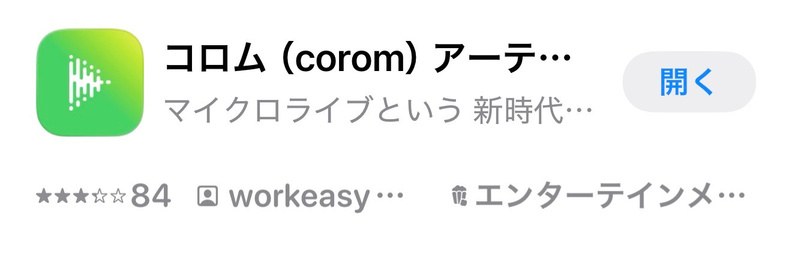
When you open the app, you will see “新規登録” (Sign up).
There are several ways to sign up. Choose whichever you prefer from the options on screen. Signing up with a service you already use makes it easier to get back in next time.
If you sign up with an email address, follow the instructions on screen and enter:
· Your email address
· A password (any combination of letters and numbers you choose)
Once you have signed up, look for the live you want to watch, or the artist you would like to support.
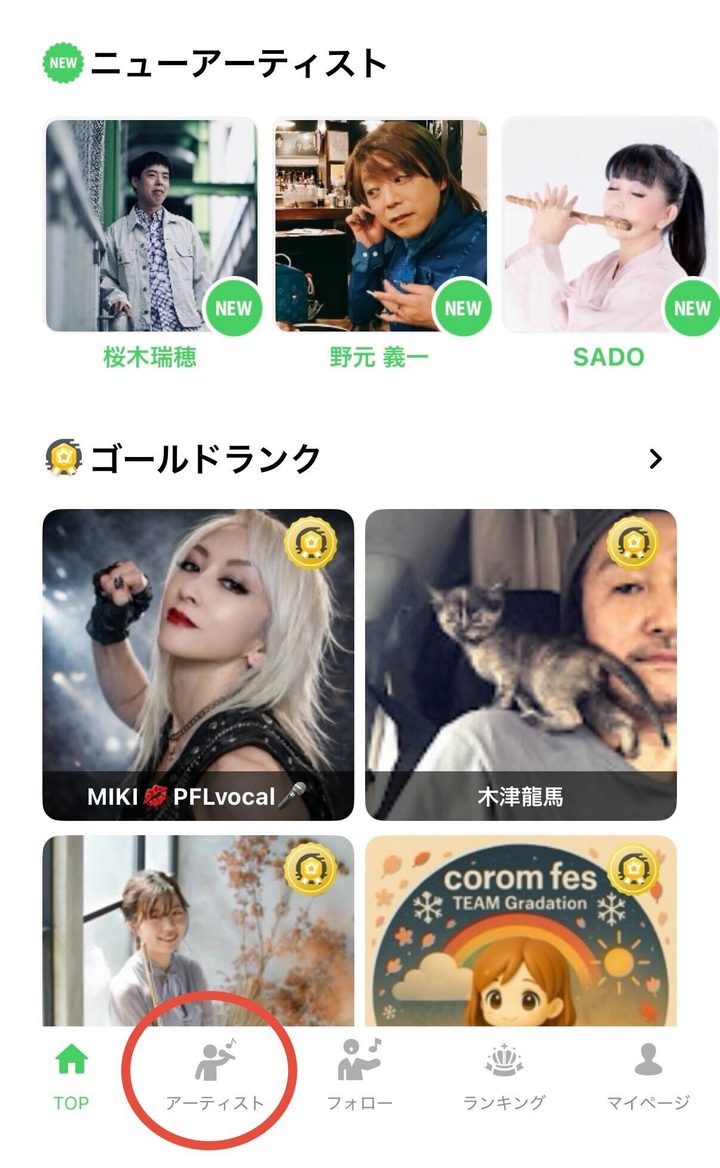
1. Press “アーティスト” (Artists) at the very bottom of the screen.
There are five buttons along the bottom. “アーティスト” is the second from the left — the icon of a person singing.
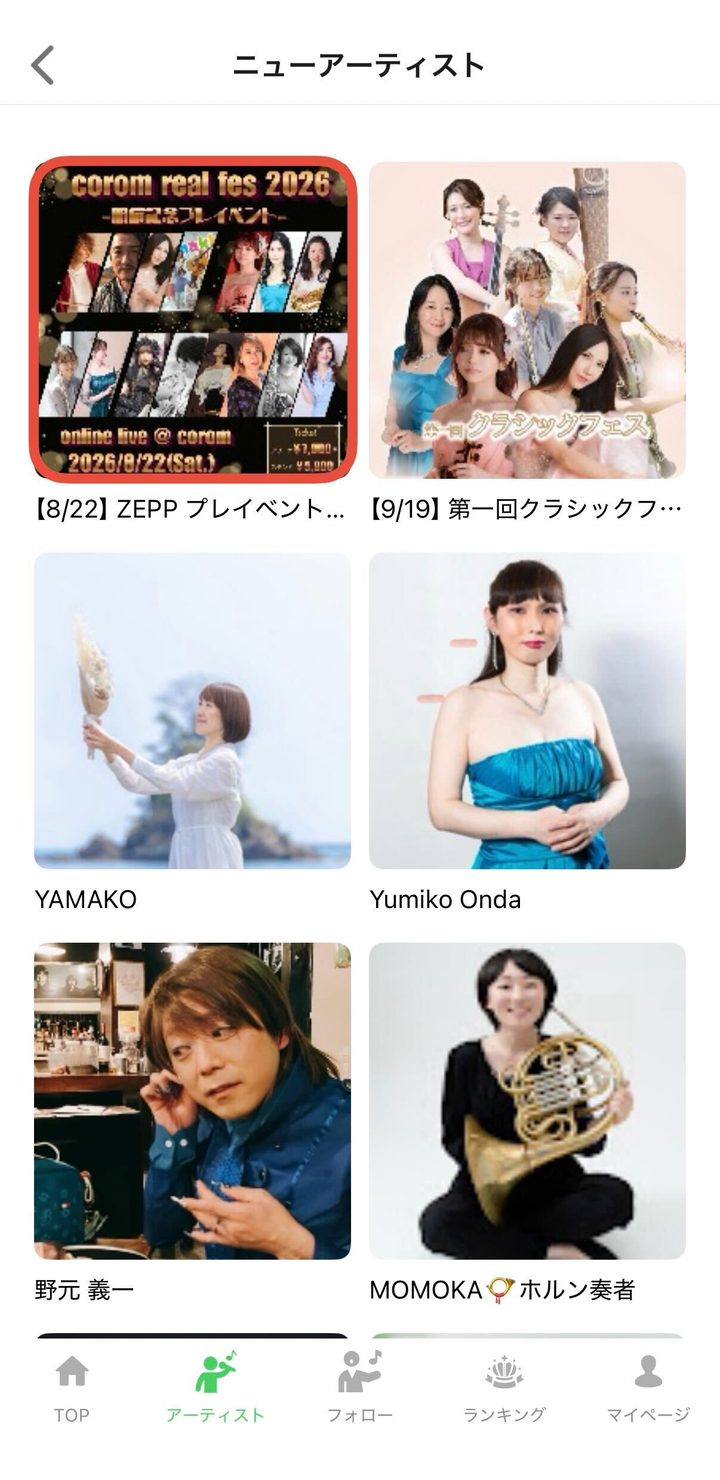
2. The list opens. Tap the photo of the live or the artist you want, and that page opens.
For some lives you will need to buy a ticket. STEP 4, “Buy a ticket”, walks you through it step by step.
Some lives are free to watch. For lives that need a ticket, there are four steps.
The same for every live. You can check this here, without going all the way to the purchase screen.
Enter your card number and the name on the card. The purchase is confirmed as soon as the payment goes through.
You can pay at Lawson, FamilyMart, Ministop or Seicomart. Cash only. Please write down the reference number shown on screen.
Your seat is not held until you have paid in the store. After the deadline the order is cancelled automatically. Please avoid convenience store payment just before a live.
Payment methods are the same for every live. Whether you buy inside the app or from a link sent by the artist, you choose between these two.
Getting these done the day before means nothing to rush on the day. Tap each line to tick it off (saved on this device).
You can check the sound with any video you normally watch. Video stops more easily where the signal is weak, so connecting to your home Wi-Fi beforehand is the safest option.
When it is time for the live to start, there are only four steps.
Find the green corom icon on your phone's home screen and tap it.
On a computer, open corom.me and press “ログイン” (Log in) at the top right.
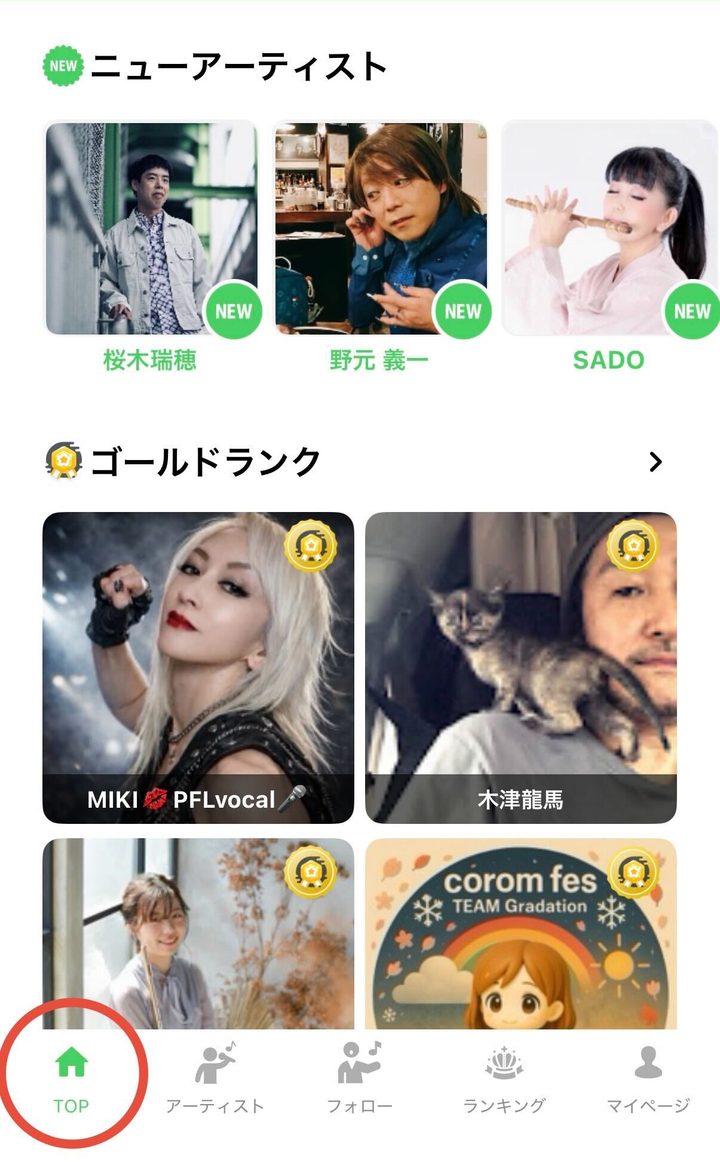
The app opens on the top screen. If you find yourself somewhere else, press the house icon (TOP) at the very bottom of the screen.
Lives that are running now appear on this top screen.
When a live is running, round icons appear near the top of the screen. That is the entrance.
Tap the icon for the live you want to watch, and the video starts right away.
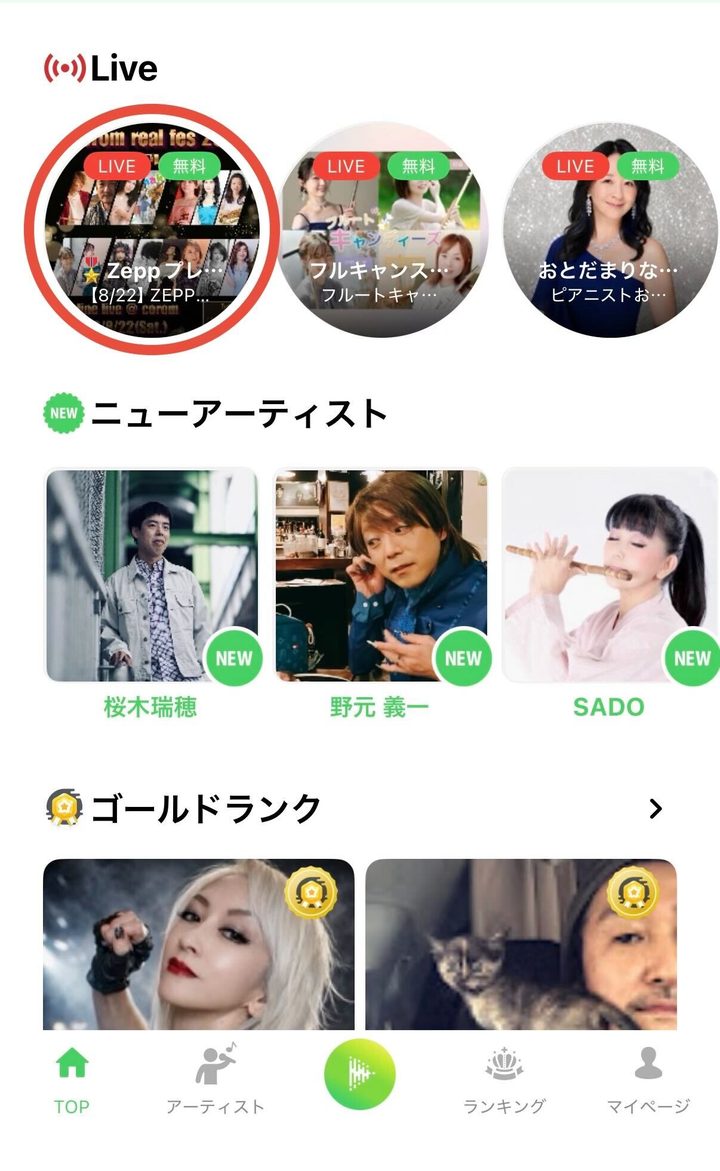
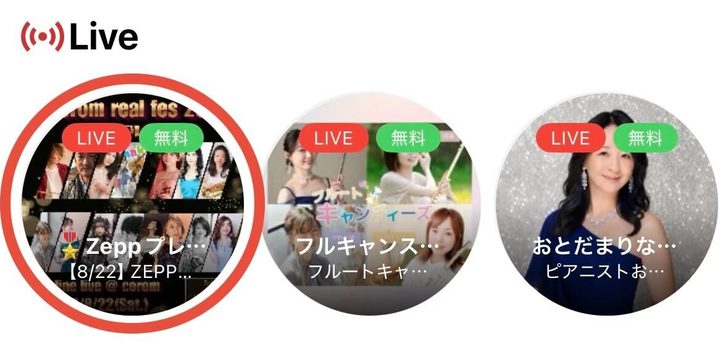
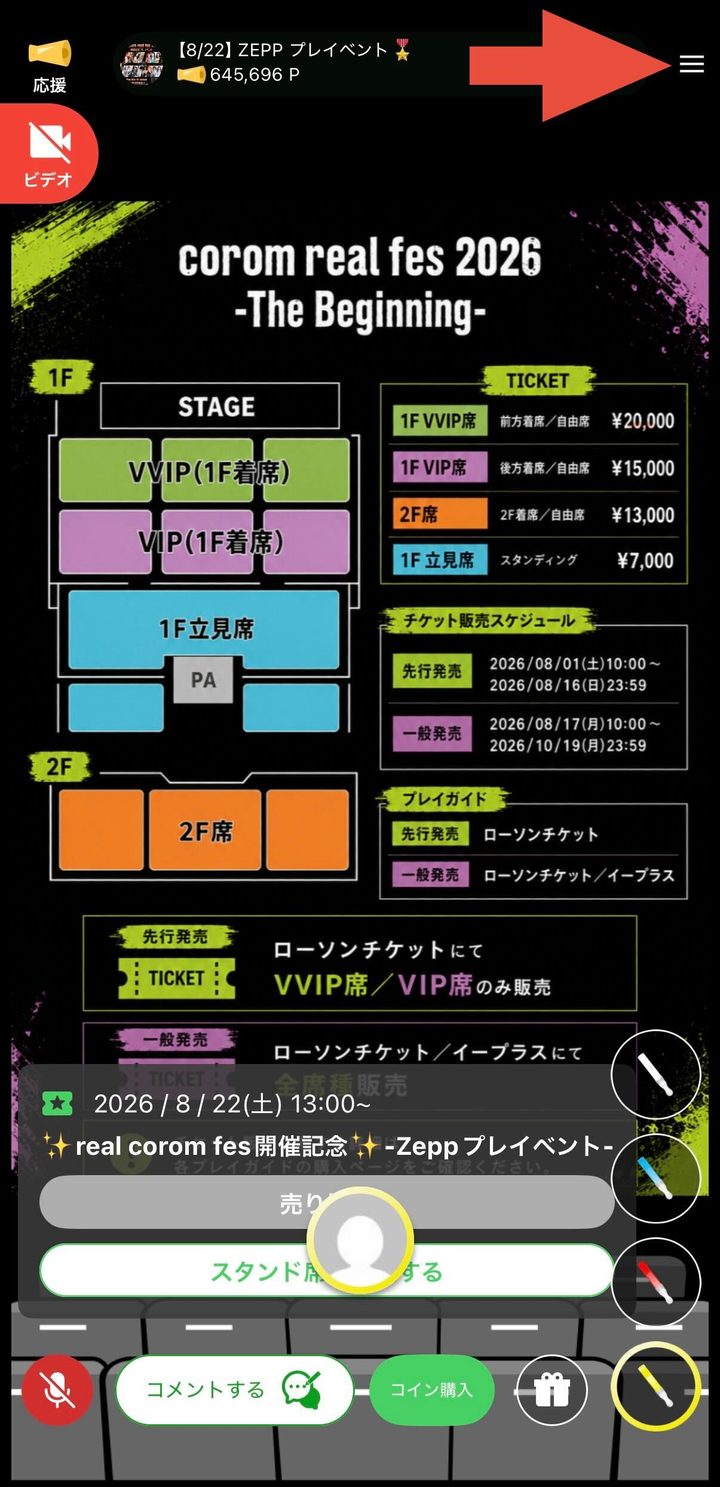
When the live is over, leave the room in two steps.
1. Press the three lines (≡) at the top right of the live screen.
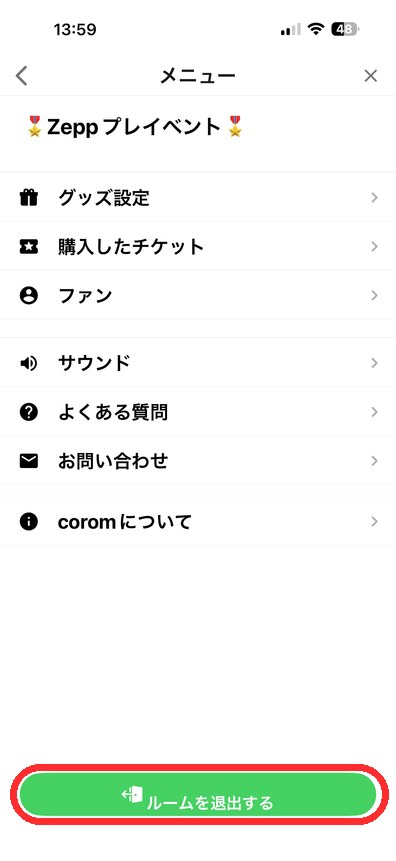
2. When the menu opens, press the green button at the bottom, “ルームを退出する” (Leave the room).
A corom live has two kinds of seats. You choose one when you buy your ticket.
Close to the artist, cheering together
An Arena seat feels like standing at the centre of the venue, closer to the artist.
Relaxed, at your own pace
A Stand seat lets you relax and enjoy the live at your own pace.
Tap a name on the left to jump to its explanation.
| What you can do | Arena seat | Stand seat |
|---|---|---|
| White penlight | Free | Not available |
| Original penlights and rings | Paid | Not available |
| Comments | Free(some paid) | Paid |
| Reactions | Paid | Paid |
| Your icon appears on screen | Yes | No |
| Watch again after the live (archive) | Yes | Yes |
Simply watching the screen and enjoying the music is perfectly fine.
A corom live is enjoyable even if you only watch and listen. If you feel unsure about the controls, it is completely fine to simply sit back and watch.
Just tap the screen lightly. It feels much like clapping at a venue.
Tap, and they light up like this
Only when the artist allows it, a fan who is handed the microphone can speak out loud.
When you are handed the mic, your voice comes through
You can cheer with a message attached. Coins are items purchased inside the app.
There is no need to use them.
You can also cheer by watching videos. This is available on the smartphone app only.
Do only as much as feels comfortable.
In an Arena seat, your own icon appears on screen during the live, and the artist can see it. Choose one that is unmistakably you, and you may well hear your name called out.
You can change your icon at any time from the profile screen in the app. Deciding on one before the live starts is the safest option.
Here are the questions we are asked most often.

Scan this QR code to return to this page at any time. You can also print the page and keep it beside you.
Seat types (Arena and Stand), what you can do during a live, and the questions we are asked most often are on the page itself — scan the QR code to read them.
🖨Print this page