 corom
Guest purchase
corom
Guest purchase
corom
Guest purchase
corom
Guest purchase
You can buy a corom ticket with just an email address, even if you do not have an account yet. We call this a guest purchase.
A guest purchase covers the payment only. To watch on the day, you must create a corom account and claim your ticket before the live starts.
The instructions are in the email sent from noreply@corom.app right after your purchase. Please start by looking for that email.
A way to buy a ticket with just an email address, before you install the app.
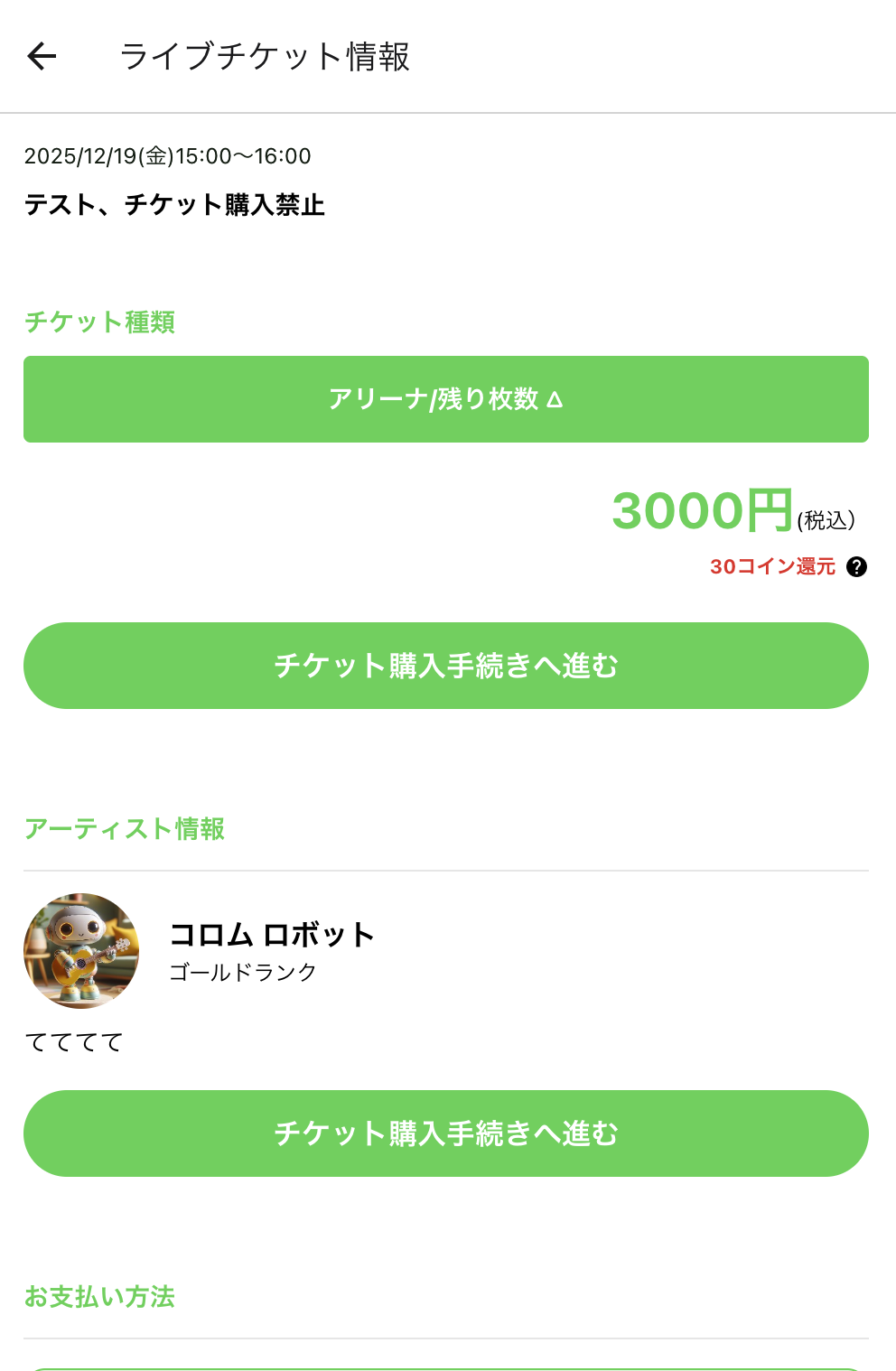
You can buy directly from the link the artist shares with you.
Tap the live link the artist has shared in a post or a message. It starts with https://corom.app/mp/…
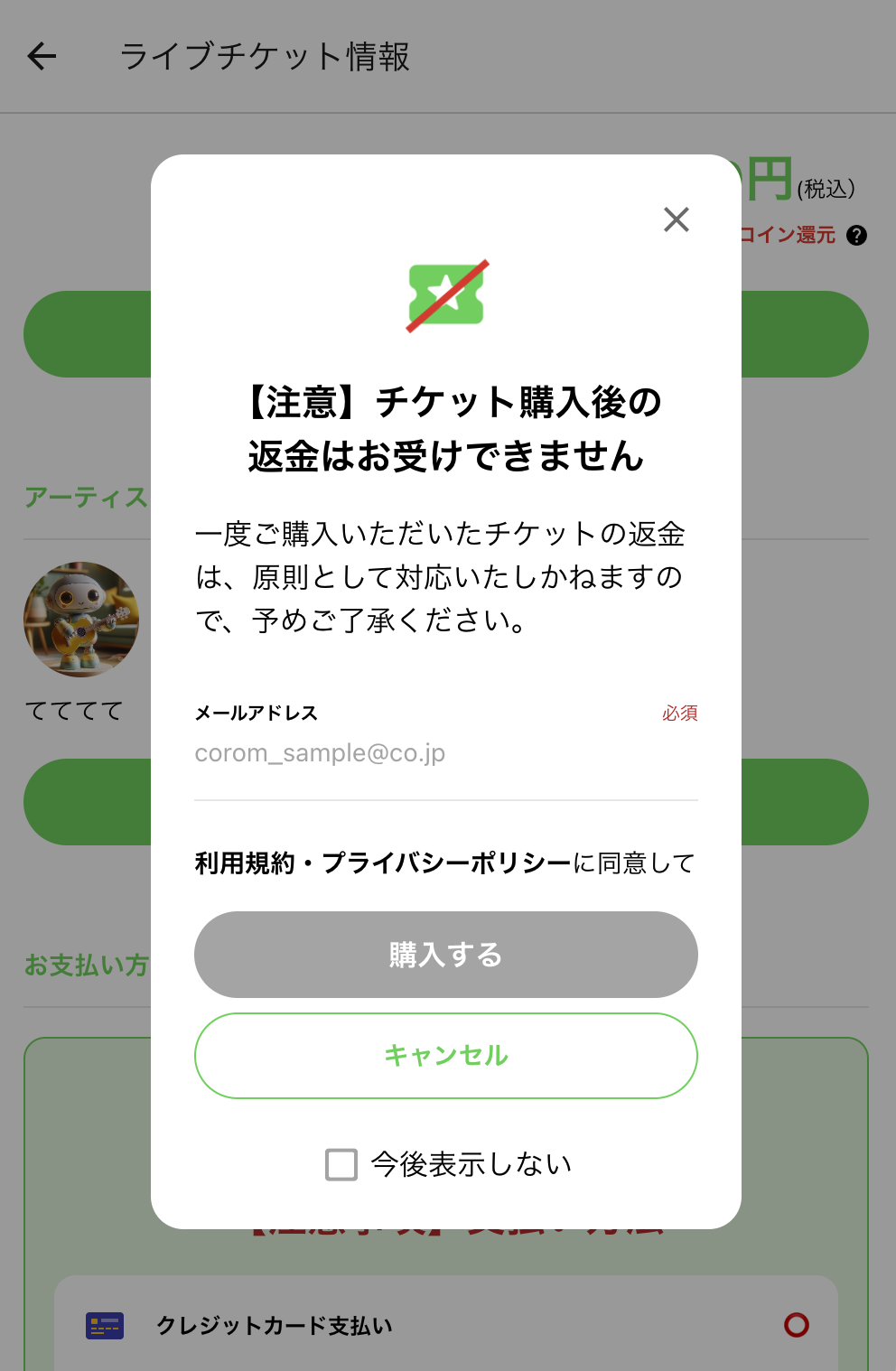
As you go on, you are asked for an email address. Please review the Terms of Service and the Privacy Policy, then continue with "Buy".
The email that lets you claim your ticket is sent to the address you enter. If a single character is wrong, the email will not reach you and you will not be able to receive your ticket.
We recommend an address you use every day and can open on the day of the live.
This screen also tells you that tickets cannot be refunded after purchase. Please check the date, the time and the ticket details once more before you pay.
After that, you move on to the order summary and the payment screen.
You can pay by credit card or at a convenience store in Japan.
Your seat is not reserved until the payment is made in the store. Please pay before the deadline shown on screen. After the deadline the order is cancelled automatically and you will need to buy again.
Please take care if you choose this method close to the live. If the payment is not completed in time, you will not be able to join.
The convenience store steps are also explained with screenshots in the corom help pages (in Japanese).
🏪Convenience store steps (Japanese)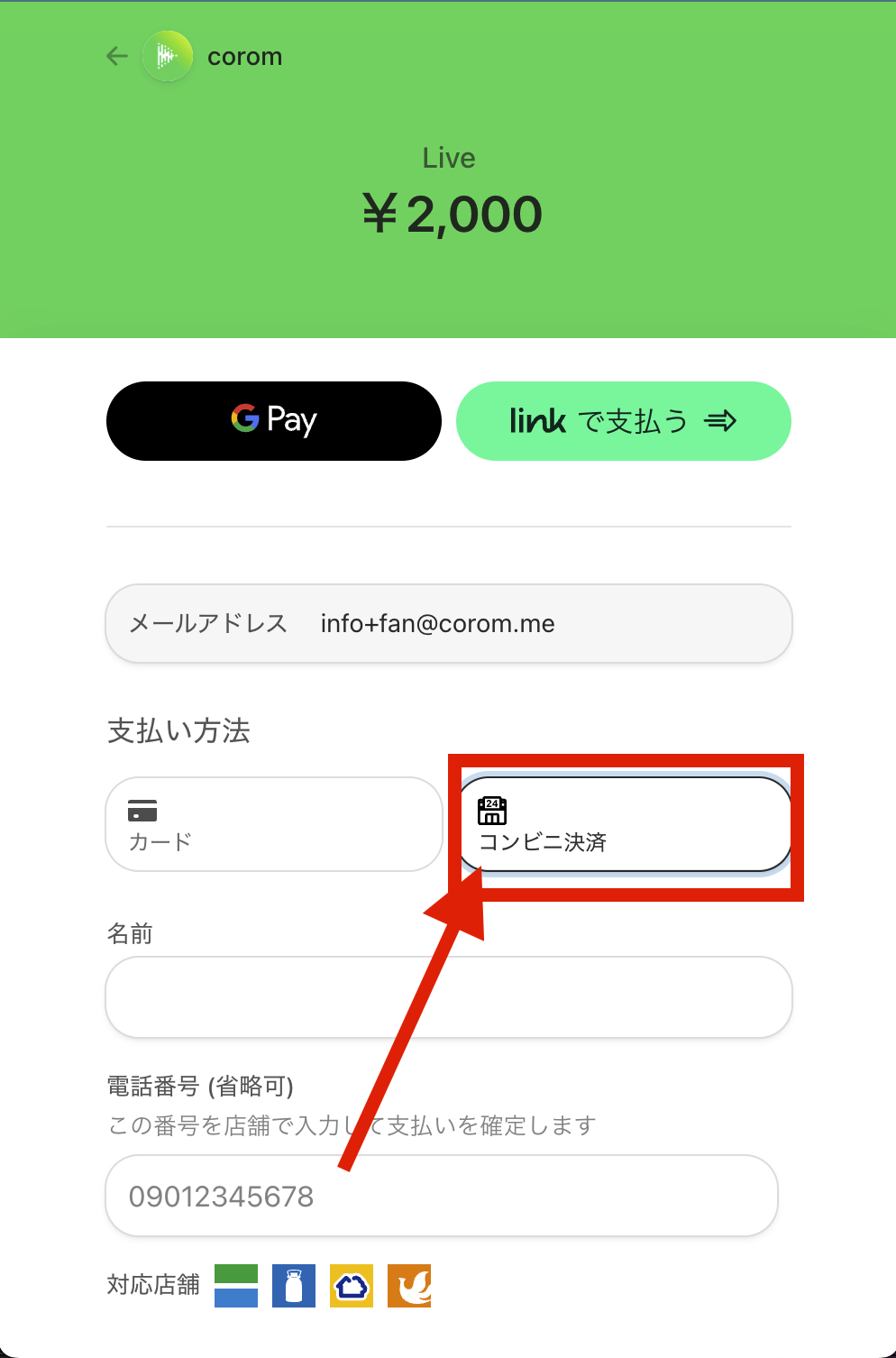
Once the payment is complete, your purchase is confirmed and these emails are sent to the address you entered.
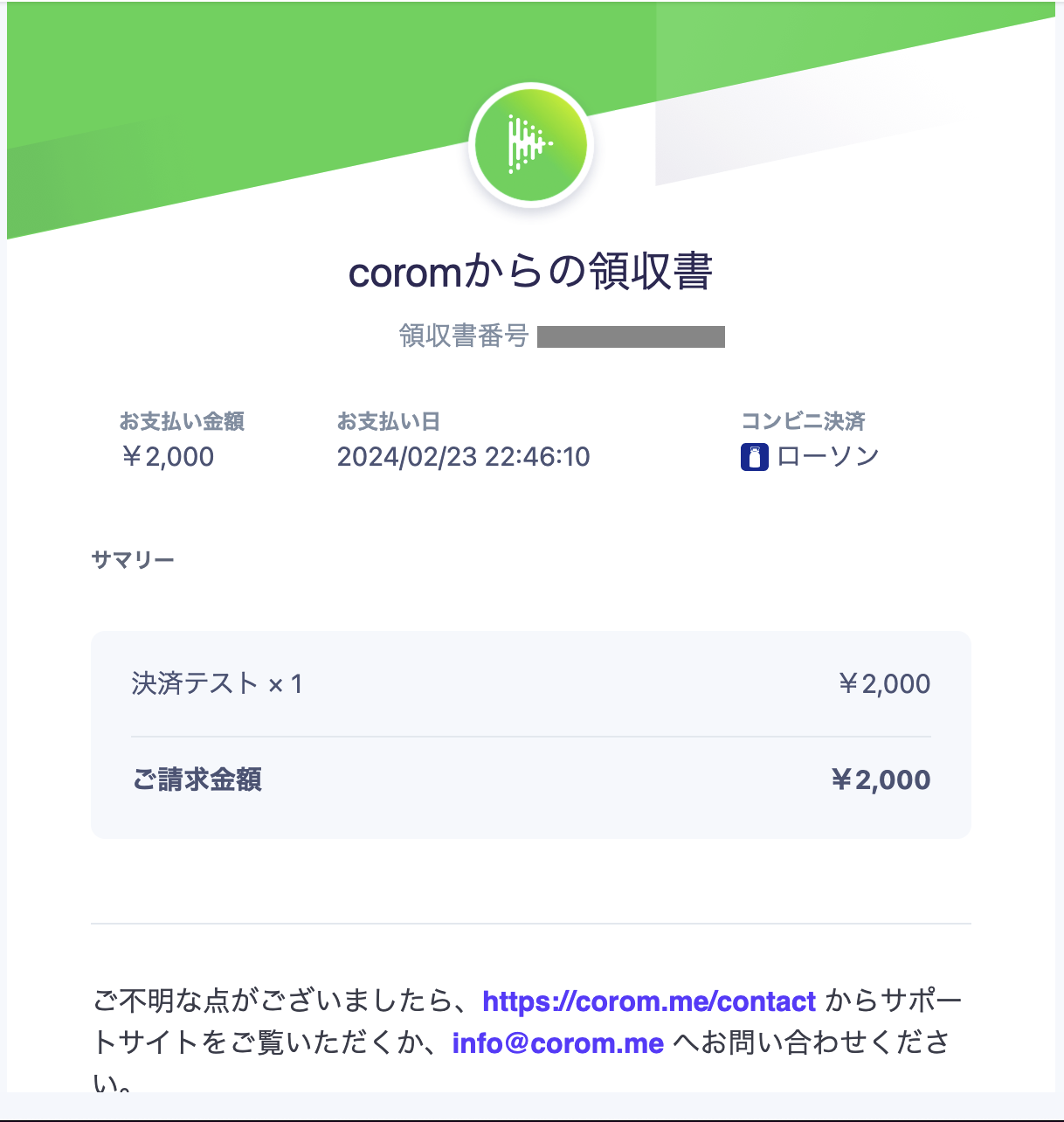
Once this is done, you can relax and enjoy the live on the day.
A ticket can only be used once it is linked to an account. If the process is not finished by the start time, you will not be able to join.
We recommend doing it while you have time — ideally the day before.
Open the email from noreply@corom.app titled "【重要】コロムのライブ参加には、事前会員登録が必須です" and tap the link "▼チケット受け取りはこちら" (Claim your ticket here).
When the process is finished, the ticket appears in [チケット一覧] (My tickets) on your My Page. If you can see it there, you are ready.
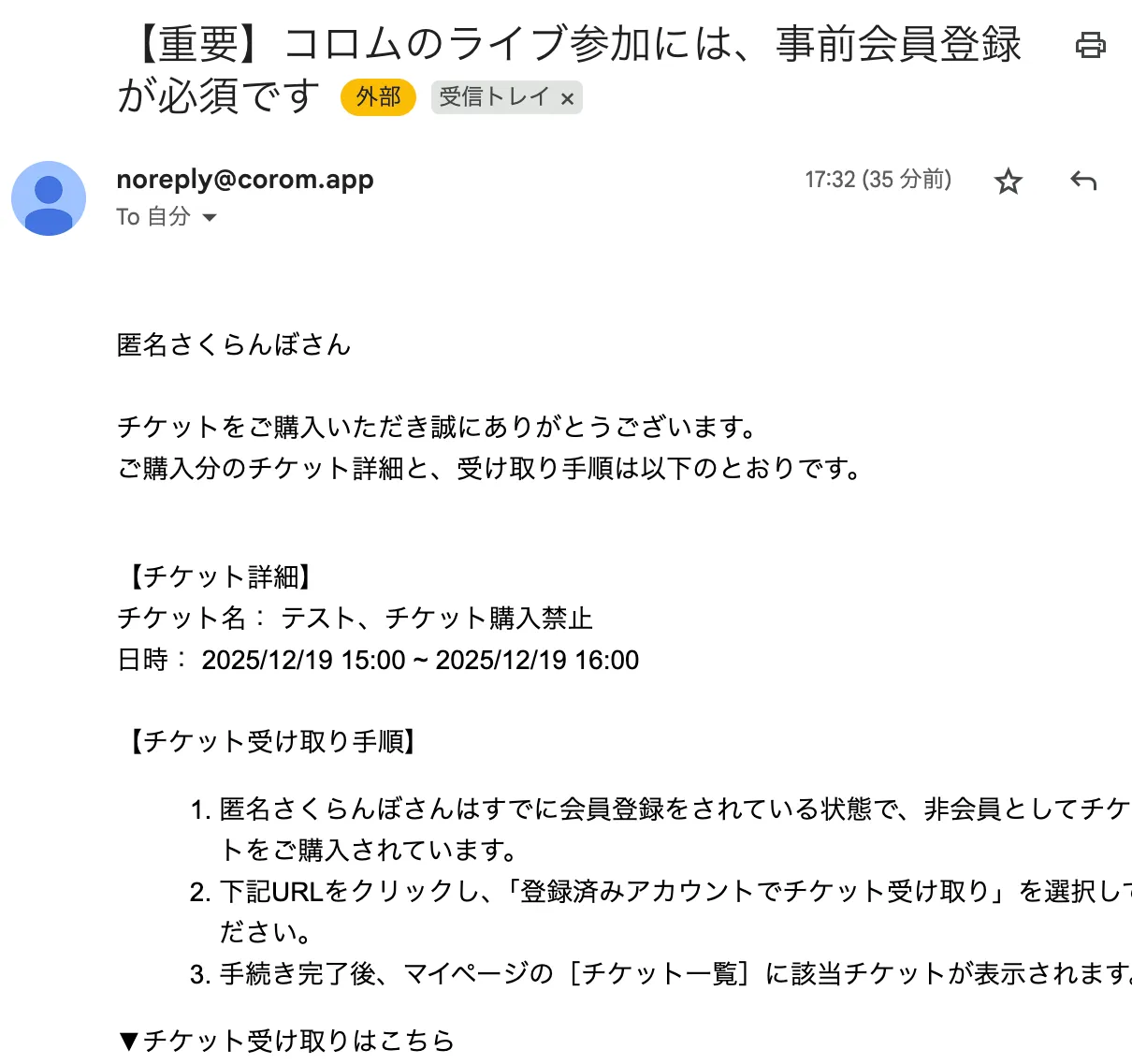
At the time of the live, open the corom app (or corom.me on a computer), log in, and enter the artist's live. If this is your first time, our guide for first-time viewers explains how to join, with screenshots.
The questions we are asked most often.
Sending these along with your message helps us check much faster.
Guest purchases are handled anonymously, so we cannot look up the details of a purchase on our side. The information above is the only way for us to find it.
Useful when you explain this to your fans.
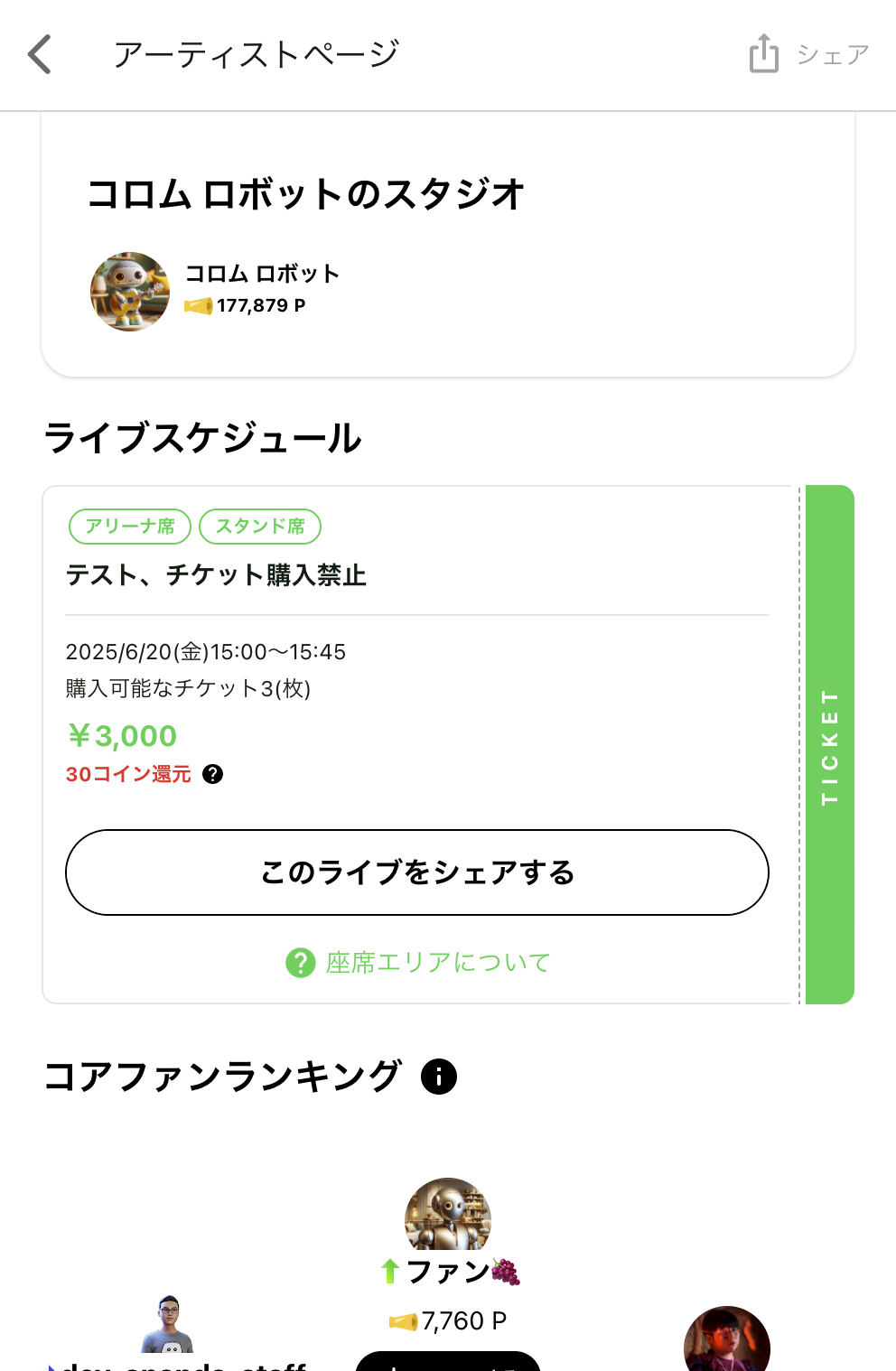
After you have issued a ticket, tap "このライブをシェアする" (Share this live) on your artist page. The URL for that live is copied, ready to share in a post or a message.
The URL is per live. People without the app see the ticket information page; people who already have an account are taken to your artist page.
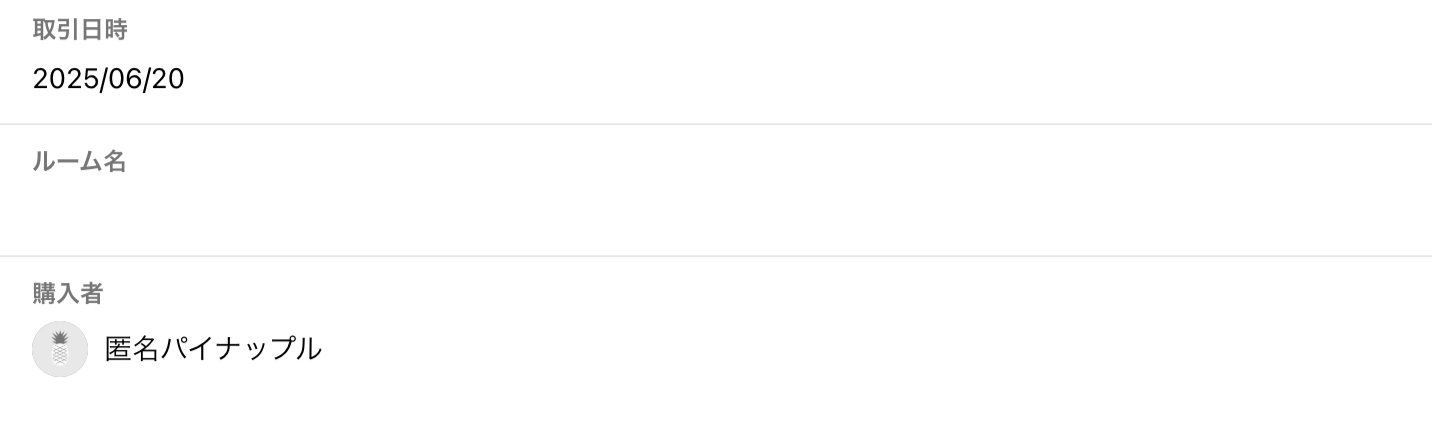
If your list of buyers shows something like "Anonymous Pineapple", that person bought as a guest. Their name and contact details are hidden, and neither you nor the corom team can tell who it is.
That person still needs an account before the live. If you think you know who it might be, you can use the messages below as they are.
To everyone who bought a ticket:

If you bought your ticket without creating an account (as a guest),
you need a corom account before the live.

After your purchase, an email was sent from noreply@corom.app
with the subject
"【重要】コロムのライブ参加には、事前会員登録が必須です".

Open the link "▼チケット受け取りはこちら" in that email
to create your account and claim your ticket.

If you cannot find the email, please check your spam folder.
Full instructions: https://corom.me/guide/en/nonmember/
Thank you for buying a ticket!

If you bought without creating an account,
you will need one before the live in order to join.

An email with the steps for claiming your ticket was sent from
noreply@corom.app to the address you used when buying.
Please follow the link in that email.

The full instructions are here:
https://corom.me/guide/en/nonmember/

If the email has not arrived, please check your spam folder
and then contact info@corom.me
Thank you for getting in touch.

Please check the following first.

1. Whether the email is in your spam folder
2. Search for sender "noreply@corom.app" / subject "【重要】コロムのライブ参加には、事前会員登録が必須です"
3. Whether your settings allow mail from noreply@corom.app and info@corom.me

If you still cannot find it, please send us:

- A screenshot of the purchase confirmation or the receipt email
- The email address you entered when buying
- The artist's name and the date and time of the live
- How you paid (card / convenience store)

We will look into it so that everything is ready before the live.
| Situation | What to tell them |
|---|---|
| No email arrived | Spam folder → search for "noreply@corom.app" → allow the sender → if still missing, contact us with a screenshot |
| Mistyped email address | Contact us before the live, with a screenshot of the purchase confirmation and the correct address |
| Asks whether an account is needed | Yes, it is required. Sign up and claim the ticket from the link in the email |
| Already has an account | Use the link in the email and choose "登録済みアカウントでチケット受け取り" |
| Cannot find the ticket | Check whether the ticket was claimed, and whether they are logged in with a different account → log out and back in |
| Paid at a convenience store | Cash only, and payment must be made before the deadline. No seat is held until then; after the deadline the order is cancelled |
| Wants to cancel or get a refund | Cancellations, changes and refunds for personal reasons are not available |

You can print this page as it is, for the reception desk or for handing out on the day. The questions and answers are printed fully opened, and the QR code opens this page.
🖨Print this page